Table of contents
XPosts setup guide
End-to-end: deploy to Vercel, connect X + Grok, and enable auto-posting with cron-job.org.
What you're setting up
| Piece | Purpose |
|---|---|
| Vercel | Hosts the site |
| Vercel Blob | Saves persona, history, scheduled posts (survives redeploys) |
| X Bearer Token | Reads tweets to build your persona |
| X OAuth keys | Posts scheduled tweets to your account |
| xAI API key | Grok generates posts and ideas |
| cron-job.org | Hits your app every 15 min to publish due posts |
Get the code
After paying on Stripe, log in at the customer dashboard and download the latest zip. Unzip it, then push to a new GitHub repo (or fork if you have repo access).
Part 1
Accounts & repo
Create accounts (if needed)
- GitHub — host the code
- Vercel — deploy the app
- X Developer Portal — API keys
- xAI Console — Grok API key
- cron-job.org — free cron (auto poster)
Push the repo to GitHub
- Download and unzip from your dashboard, or fork/clone the repo.
- Create a new GitHub repository and push the code to your account.
Part 2
Deploy on Vercel
Import the project
- Go to vercel.com/new.
- Import your GitHub repo.
- Framework: Next.js (auto-detected).
- Deploy once — it may fail until env vars exist; that's fine.
Add Vercel Blob storage
- Vercel project → Storage → Create → Blob.
- Name it (e.g.
xgrowth-data) and connect it to the project. - Vercel adds
BLOB_STORE_IDautomatically (OIDC). You usually don't copy it manually.
Without Blob on Vercel, data won't persist reliably. Locally the app uses a data/ folder instead.
Set environment variables
Vercel → Settings → Environment Variables. Add all of these for Production, Preview, and Development:
| Variable | Required | What it does |
|---|---|---|
DASHBOARD_PASSWORD | Yes | Login password for the app |
SESSION_SECRET | Yes | Random string, 32+ characters (session signing) |
X_BEARER_TOKEN | Yes | Read tweets for persona |
XAI_API_KEY | Yes | Grok generation |
X_CONSUMER_KEY | Auto poster | OAuth Consumer Key |
X_CONSUMER_SECRET | Auto poster | OAuth Consumer Secret |
X_ACCESS_TOKEN | Auto poster | Your user Access Token |
X_ACCESS_TOKEN_SECRET | Auto poster | Your user Access Token Secret |
CRON_SECRET | Auto poster | Random secret for cron-job.org auth |
BLOB_STORE_ID | Vercel | Usually auto-added by Blob store |
BLOB_READ_WRITE_TOKEN | Legacy only | Only if you use an old Blob store |
Generate secrets
SESSION_SECRET— long random string (password generator, 32+ chars)CRON_SECRET— different long random stringDASHBOARD_PASSWORD— whatever you want to log in with
Optional (notes only)
CRON_PUBLISH_URL — e.g. https://your-app.vercel.app/api/cron/publish
Redeploy
Deployments → latest → Redeploy (or push a commit). Env vars only apply after redeploy.
Part 3
X Developer Portal
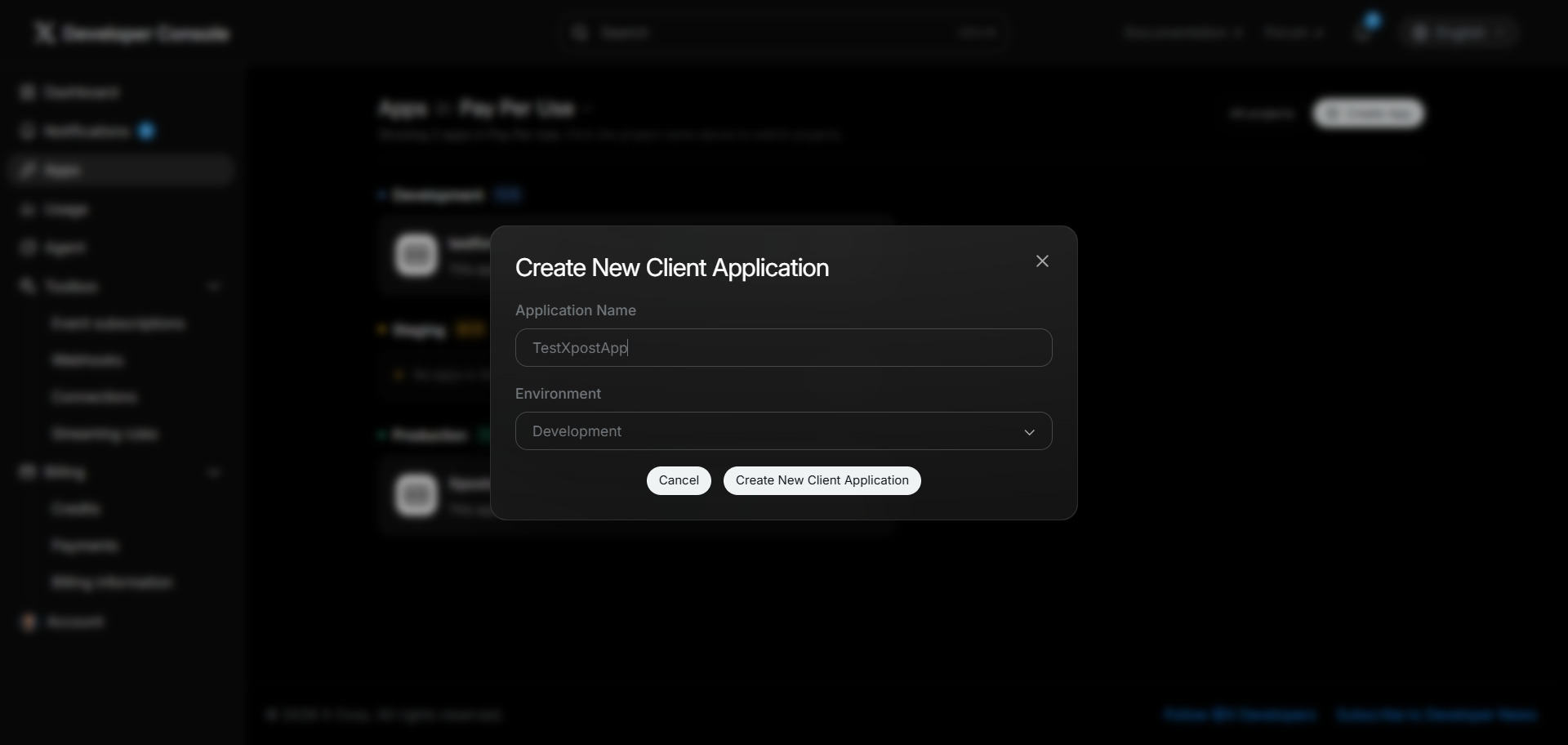
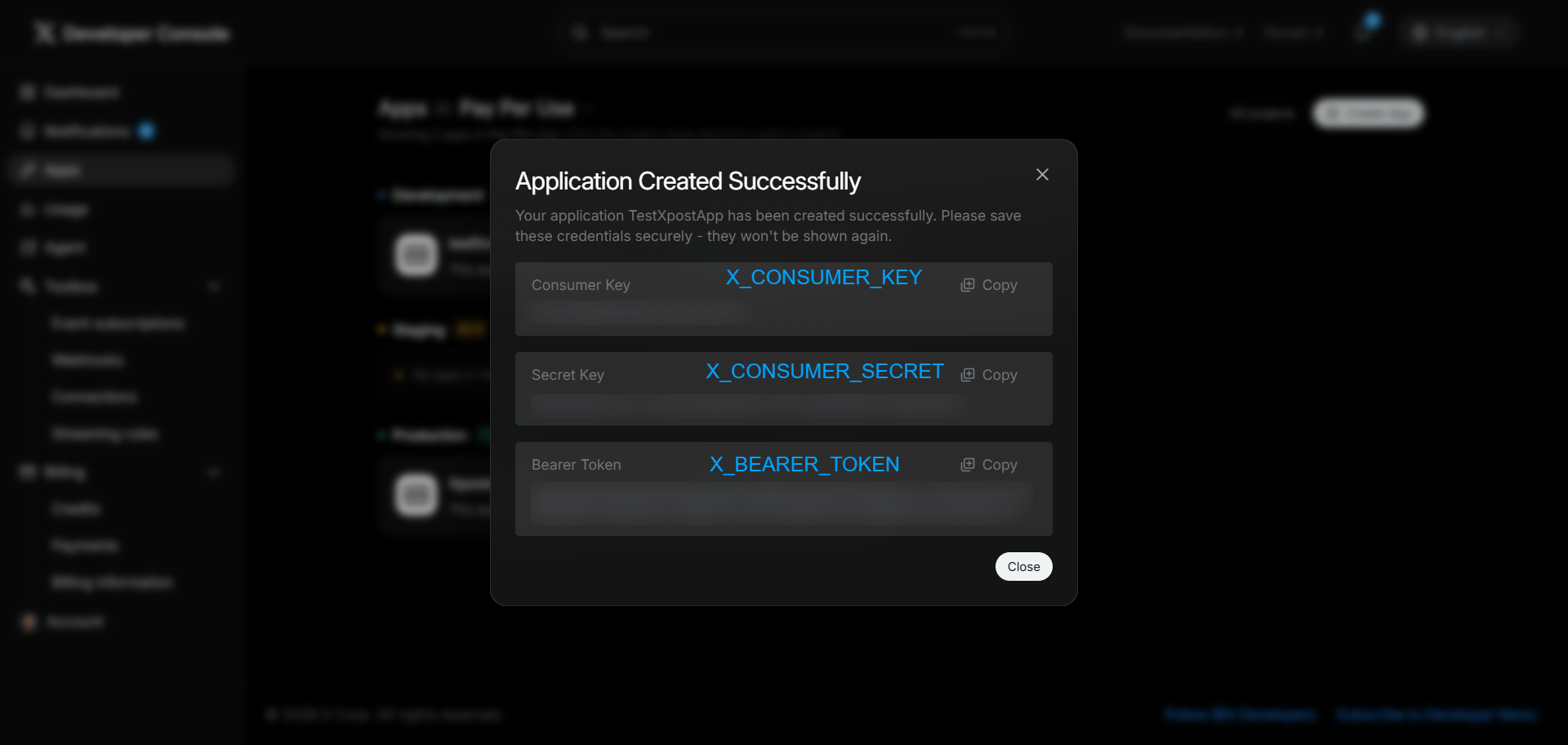
Follow the screenshots below in order. You'll create an app, enable Read and write permissions, then copy your Bearer Token and OAuth keys into Vercel.
Create an X app
- Go to developer.x.com and open your project (or create one).
- Click to add a new app — use a name like
xposts-auto.
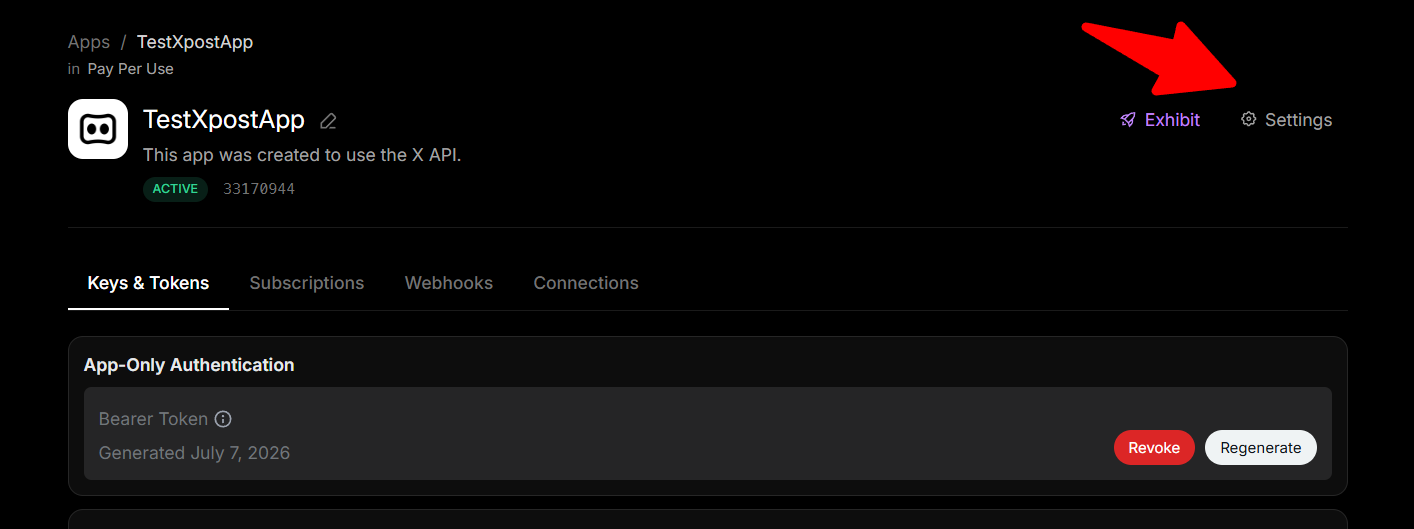
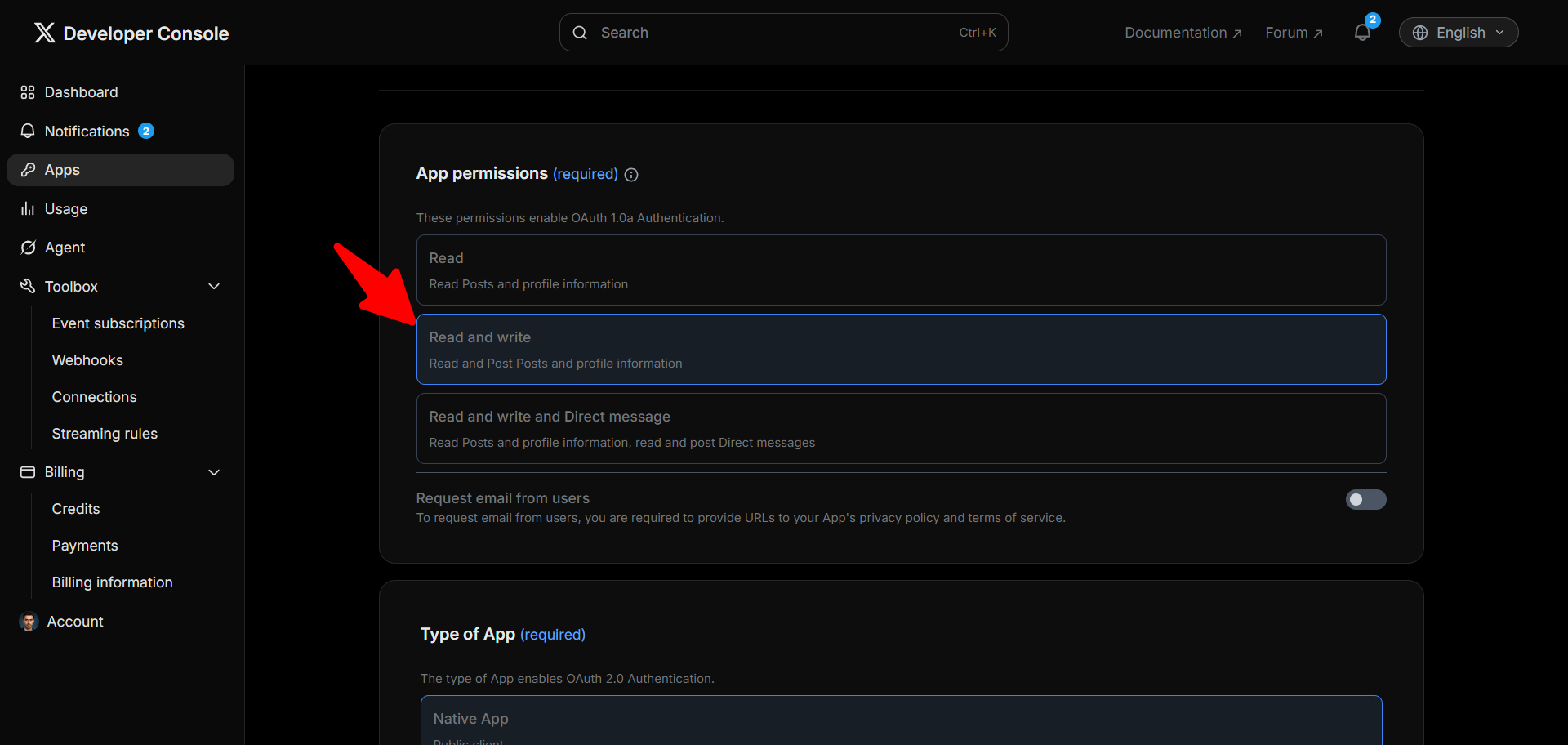
App info & permissions
From your new app, open Settings and set permissions to Read and write before generating Access Token + Secret.
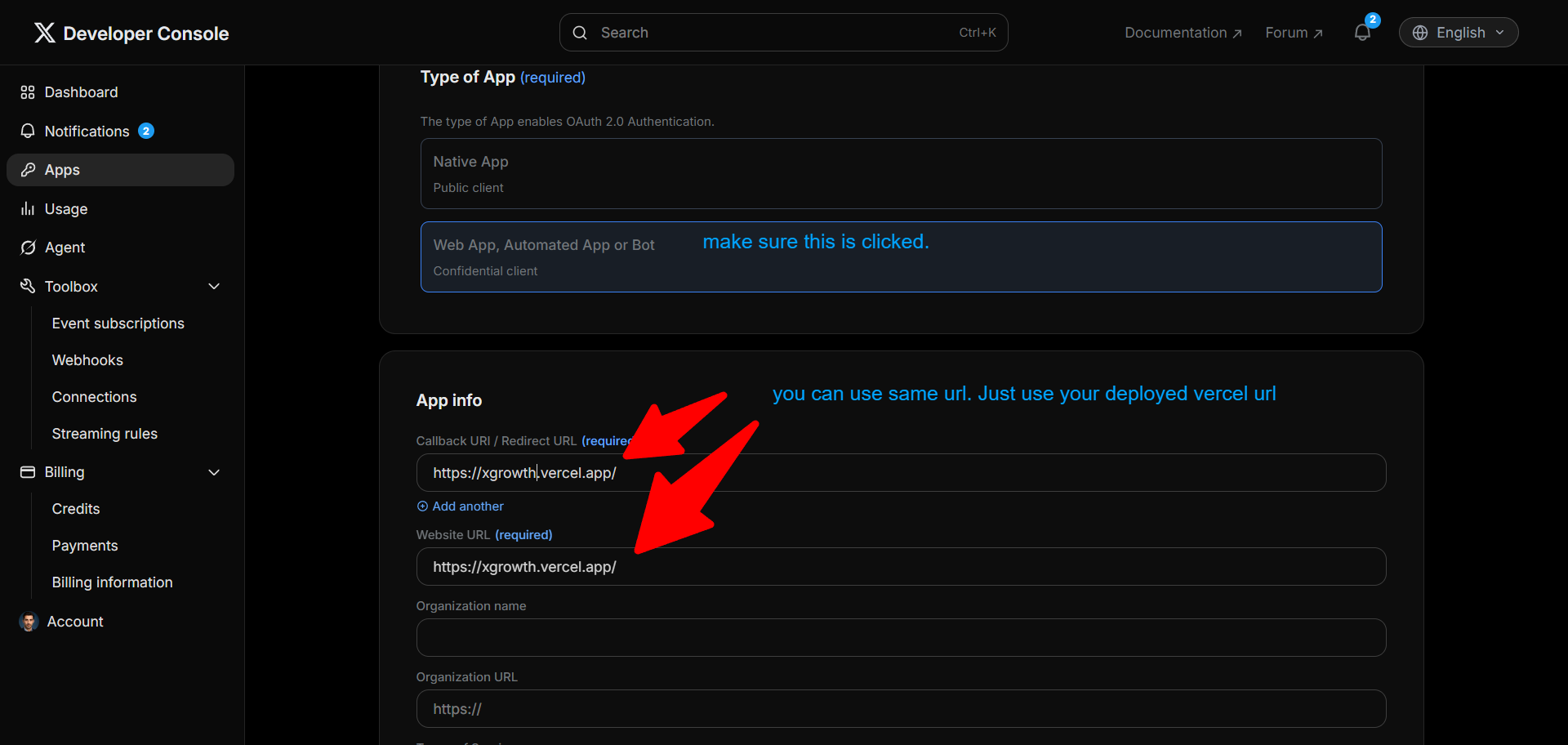
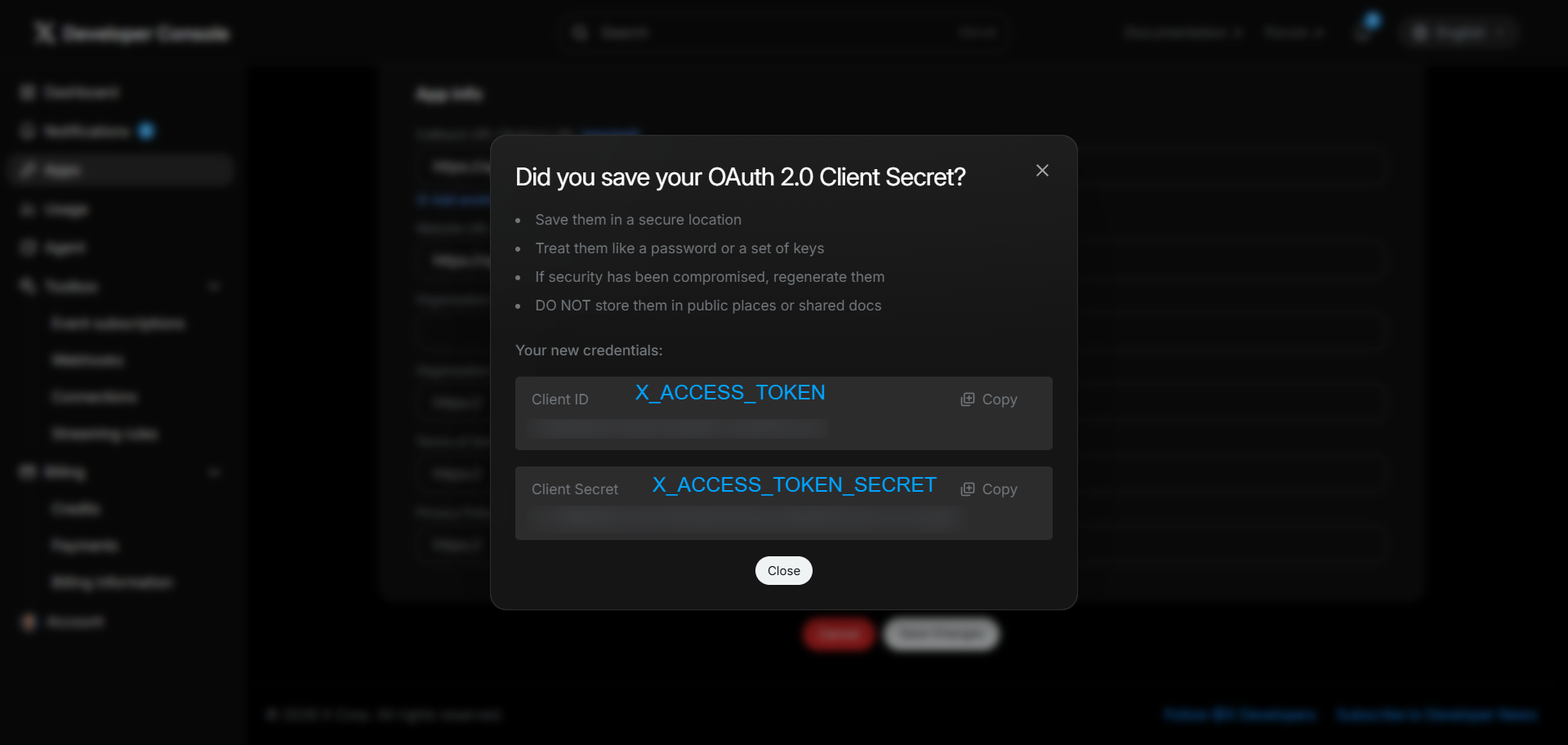
All X tokens — add to Vercel
You now have every key xposts.co needs for X. Paste them into Vercel → Settings → Environment Variables (Production, Preview, and Development):
| Vercel variable | From X Developer Portal |
|---|---|
X_BEARER_TOKEN | Bearer Token — reads tweets for personas |
X_CONSUMER_KEY | OAuth 1.0 Consumer Key |
X_CONSUMER_SECRET | OAuth 1.0 Consumer Secret |
X_ACCESS_TOKEN | Access Token — posts as your X account |
X_ACCESS_TOKEN_SECRET | Access Token Secret |
Redeploy after saving. Access tokens post as whichever X account generated them — use the account you want to auto-post from.
X API access tiers change over time. If persona build fails with auth/rate errors, check your X developer plan allows user tweet lookup.
Part 4
xAI (Grok)
After X keys are set, add your Grok API key for post generation.
Get your Grok API key
- Go to console.x.ai.
- Create an API key.
- Add to Vercel as
XAI_API_KEY. - Redeploy.
Generation costs about $0.01 per text post — you pay xAI directly, not xposts.co.
Part 5
cron-job.org (auto poster)
After X + Grok keys are in Vercel, set up cron so scheduled posts publish automatically.
The app exposes a public endpoint (no dashboard login):
GET or POST https://YOUR-APP.vercel.app/api/cron/publishAuth (either works):
Authorization: Bearer YOUR_CRON_SECRET- or header:
x-cron-secret: YOUR_CRON_SECRET
YOUR_CRON_SECRET must match CRON_SECRET in Vercel.
xposts.co won't let you queue posts less than 15 minutes apart. Cron also runs every 15 minutes — so you can't accidentally spam X. Schedule at least 15 minutes ahead and you're safe.
Create the cron job
- Sign up / log in at cron-job.org.
- Click Create cronjob → choose URL type.
- Title: e.g. XPosts publish
- URL:
https://YOUR-APP.vercel.app/api/cron/publish - Schedule: every 15 minutes
- Request method: GET (or POST — both work)
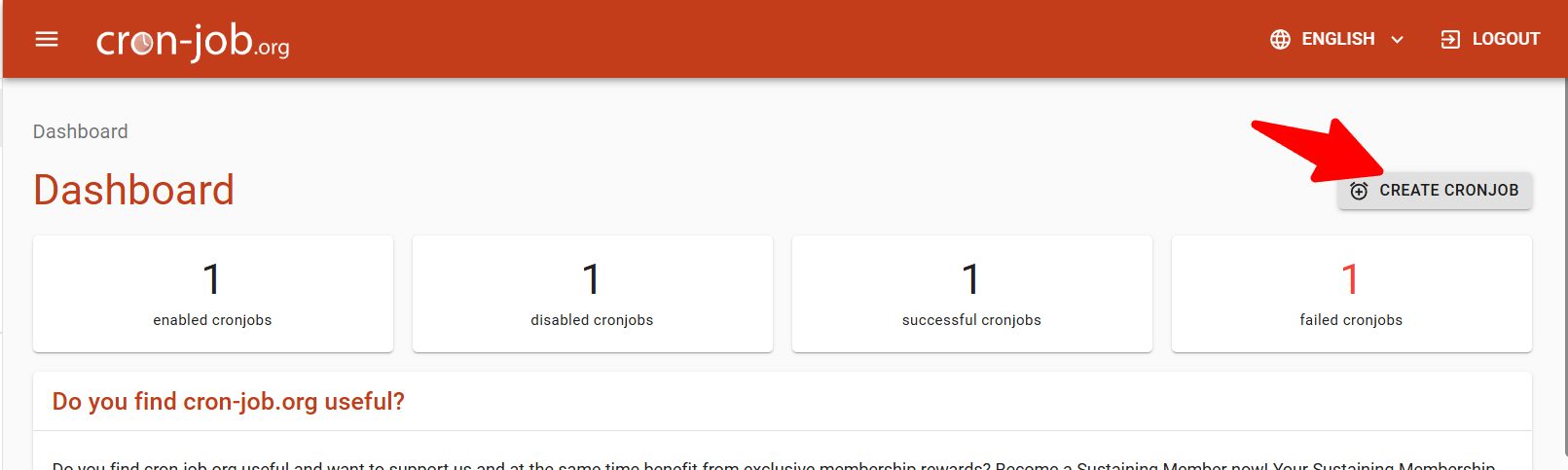
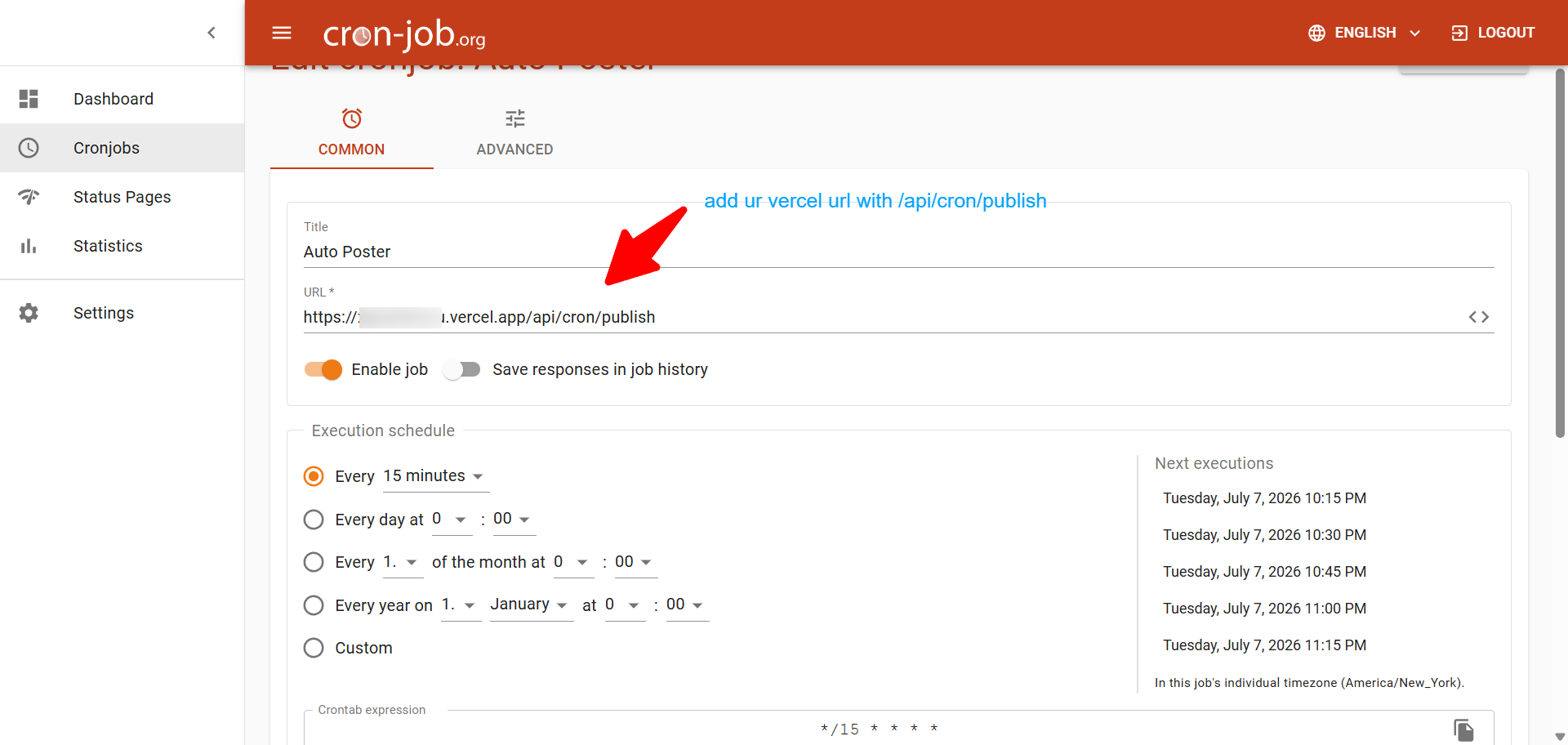
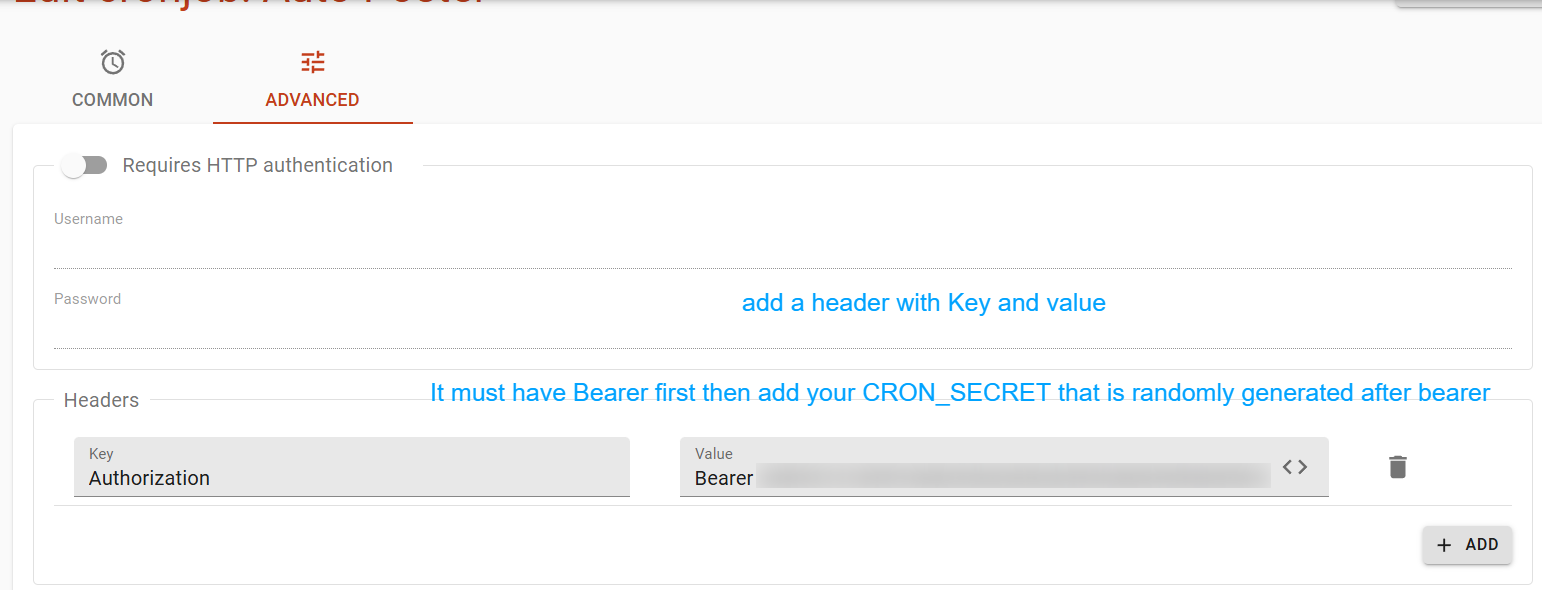
Authorization = Bearer YOUR_CRON_SECRET (must match Vercel exactly).Enable the job and you're done. cron-job.org hits your app every 15 minutes to publish due posts — xposts.co's queue already enforces 15-minute gaps, so posts won't pile up or spam your account.
Test the cron job manually
In cron-job.org, use Test run / Execute now.
Success response (example):
{
  "ok": true,
  "processed": 1,
  "results": [{ "id": "...", "status": "posted", "tweetId": "..." }]
}| Response | Fix |
|---|---|
401 Unauthorized | Wrong CRON_SECRET or missing Authorization: Bearer ... header |
503 + X credentials missing | Set all 4 OAuth vars and redeploy |
processed: 0 | Normal if nothing is due yet |
status: "failed" | Check error in response; often X API limits, bad token, or tweet too long |
Verify a real post
- In Auto poster, schedule a post 20+ minutes ahead.
- Wait for the next cron run (within 15 min of scheduled time).
- Refresh Auto poster — status should change to posted.
- Confirm on X.
Part 6
First use in the dashboard
With X keys, Grok, and cron configured, log in and start generating.
Log in
Open https://YOUR-APP.vercel.app and enter your DASHBOARD_PASSWORD.
Personas tab
- Enter your X username (no
@). - Enter 3 influencer usernames (all unique, no duplicates).
- Roles: similar niche, aspirational, skill-based (shown in UI).
- Click Save accounts.
- Click Build persona — fetches tweets via Bearer Token.
- Wait until it completes (can take a minute).
Content hub tab
- Set up your Growth plan (targets, talking points).
- Pick post format (short / standard / longform).
- Generate posts or run Post ideas (trends + Grok).
- Use Copy or Schedule on any post card.
Auto poster tab — queue posts
Rules (built into the app):
- Posts must be scheduled at least 15 minutes apart — the queue won't accept closer intervals.
- Cron checks every 15 minutes, so you won't spam X.
- Max 7 days ahead · max 7 posts/day · max 49 pending in queue.
Ways to schedule
- Schedule on a generated post card (Content hub), or
- Paste text in Auto poster → Add to queue.
Compare & Storage tabs (optional)
- Compare — graph + table vs other tools (local post math).
- Storage — Blob usage; clear history/queue if needed.
Part 7
Local development (optional)
Copy env file:
copy .env.example .env.localFill at minimum: DASHBOARD_PASSWORD, SESSION_SECRET, X_BEARER_TOKEN, XAI_API_KEY.
Leave Blob vars empty — data saves to data/ locally.
Run:
npm install
npm run dev
Open http://localhost:3000.
Auto poster locally: OAuth keys work, but cron must hit a public URL. For local testing, use a tunnel (ngrok, etc.) or test against your Vercel URL.
Cache errors (Cannot find module './611.js')
npm run dev:cleanKeep the project outside OneDrive if this keeps happening (e.g. C:\dev\xgrowth).
Part 8
Customize in the app (optional)
No GitHub edits needed — add sources and personas directly in your dashboard so generations match the vibe you want.
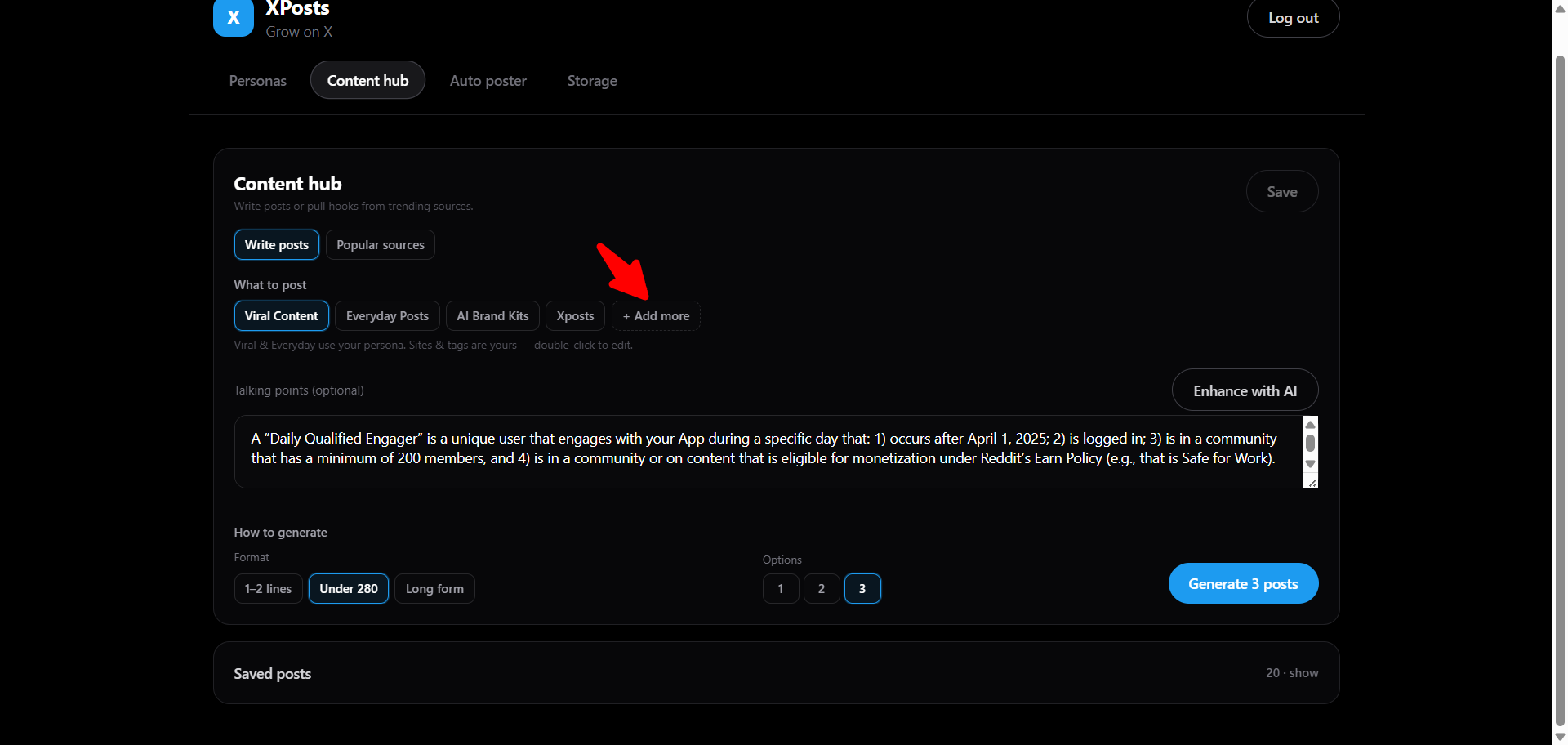
- Websites & products — point generation at your sites or niches you cover.
- Personas — add influencers or voices beyond the default three.
- Content sources — Reddit, Hacker News, RSS — tune what ideas get pulled in.
Everything saves to your Blob storage automatically. No redeploy required.
Part 9
Checklist
Deploy
- Repo on GitHub
- Vercel project imported
- Blob store connected
- All env vars set
- Redeployed
X API
X_BEARER_TOKEN— persona build works- App permission Read and write
- 4 OAuth vars set — auto poster warning gone
Cron
CRON_SECRETin Vercel- cron-job.org job every 15 min
Authorization: Bearer ...header set- Test run returns
ok: true - Scheduled post goes posted on X
App
- Login works
- Persona built (you + 3 influencers)
- Generated and scheduled at least one post
Part 10
Troubleshooting
| Problem | What to try |
|---|---|
| Login fails | Check DASHBOARD_PASSWORD, redeploy |
| Persona build fails | Check X_BEARER_TOKEN, X API access, usernames valid |
| Grok errors | Check XAI_API_KEY, billing/credits on x.ai |
| Queue saves but nothing posts | OAuth keys + cron job + CRON_SECRET header |
| 401 on cron | Bearer token in header must match CRON_SECRET exactly |
| Data lost on redeploy | Connect Vercel Blob; check Storage tab |
| Dashboard 500 / missing chunk | npm run dev:clean; move off OneDrive |
| Two dev servers | Kill old node on port 3000; one clean npm run dev |
Quick reference — env vars
From .env.example:
DASHBOARD_PASSWORD=
SESSION_SECRET=
X_BEARER_TOKEN=
X_CONSUMER_KEY=
X_CONSUMER_SECRET=
X_ACCESS_TOKEN=
X_ACCESS_TOKEN_SECRET=
XAI_API_KEY=
BLOB_STORE_ID=          # Vercel auto
CRON_SECRET=
CRON_PUBLISH_URL=       # optional, for your notes
Need the codebase?
Pay once, download the zip, and follow this guide.
Buy now — $39